![Enformion Logo with NEW tagline-4.png]](https://help.enformion.com/hs-fs/hubfs/Enformion%20Logo%20with%20NEW%20tagline-4.png?height=47&name=Enformion%20Logo%20with%20NEW%20tagline-4.png)
Before you begin - Is your previous password auto-saved? If so, the best practice would be to delete the stored password, as that can override a manual entry or give you a message that your authorization token has expired.
Here’s a link with instructions for deleting stored passwords:
------------------------------------------------------------------------------------------------------------------
If you have forgotten your password or would just like to update it, you can click the "Forgot your password?" link on the login page.
Or, just click this link.
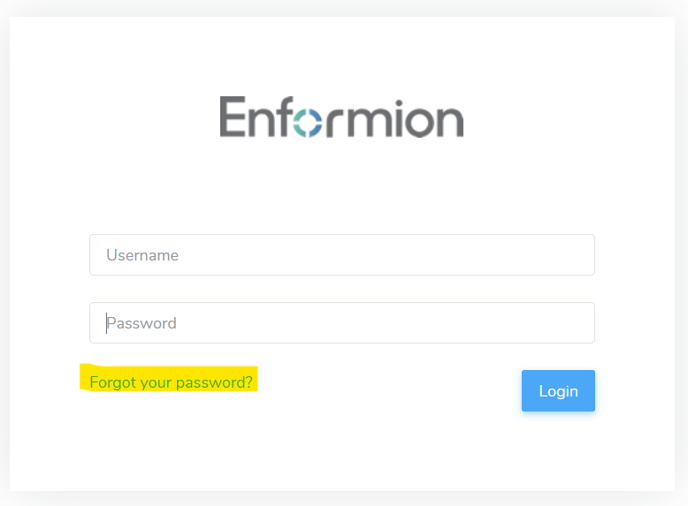
You will be redirected to a page that will ask you for your user name and the email address associated to your account. You must have access to the email address specified in order to reset your password. If you are not sure of the user name or email that is on file, please call us at (855)-281-3915, and we will retrieve that information for you.
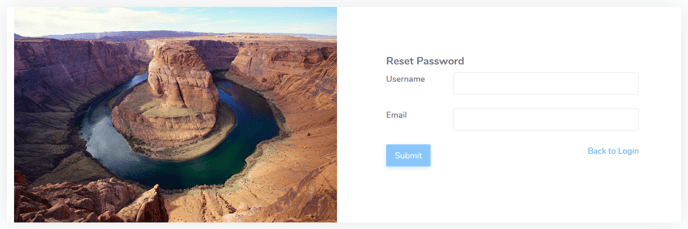
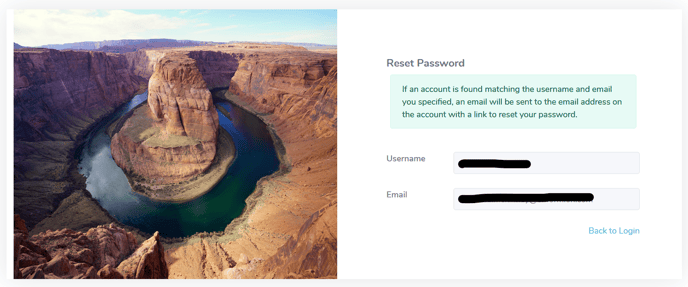
After you enter the correct username and email address on file for your account, click the submit button. You will see a message stating an email has been sent to you.
The email will come from noreply@enformion.com with the subject line: Your Requested Password Reset. If you do not see it in your inbox, please check your spam, junk, or promotions folders.
In the body of the email, click on the blue link: "Please click here to setup a new password." If the email went to your spam folder, you may need to mark it "not spam" to make the password link clickable. You will be directed into a change password screen.
Password requirements:
- Password must be at least 8 characters in length.
- Password must contain an upper case character.
- Password must contain an lower case character.
- Password must contain a number.
- Password must contain a special character.
Type in your new password, and confirm the new password by typing it in again. Then click Change Password. After you have successfully changed your password, please return to the main login screen. Log in with your username and your newly created password.
**Note - If the change password screen is asking for your current password, and you do not know your current password, you will need to click the Logout button in the top right corner of your screen.
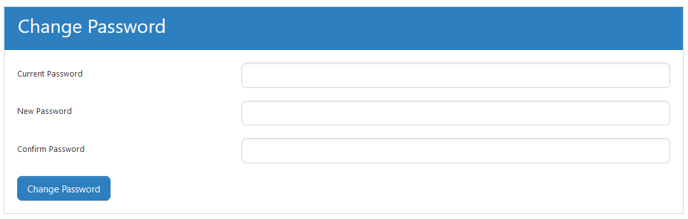
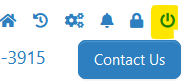
Be sure to logout of any prior session, then request the click the Forgot Password button again to have a new link sent.